The marks, and what they produced
Three real edits, each shown as the marked-up photograph that went in and the frame that came back. The annotations are the brief.
-
Three changes, one pass
An ellipse asking for pink flowers, an arrow at a sleeping dog, and a box where a bench and a seated man should go. All three arrive in the same render.
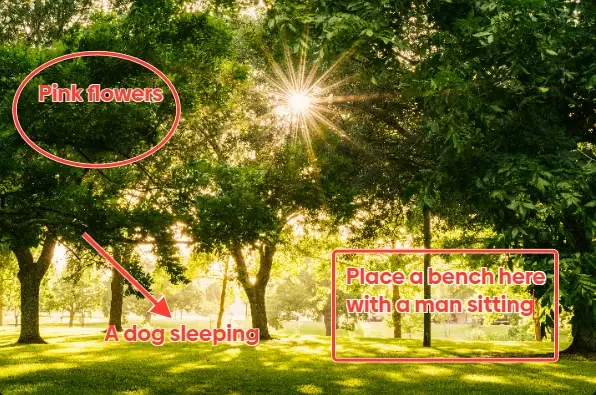 Marked up
 What was asked for 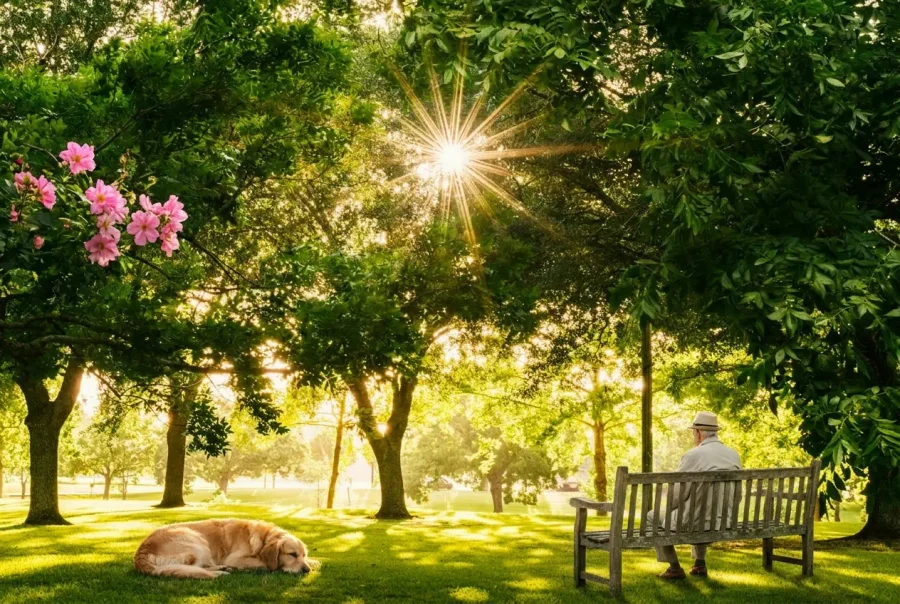 Result
 Nano Banana Pro Reads the notes as an instruction and edits the whole frame -
Dressing a room
Blue curtains on the windows, a quote written on the blackboard and a book on the desk — three notes placed where each change belongs.
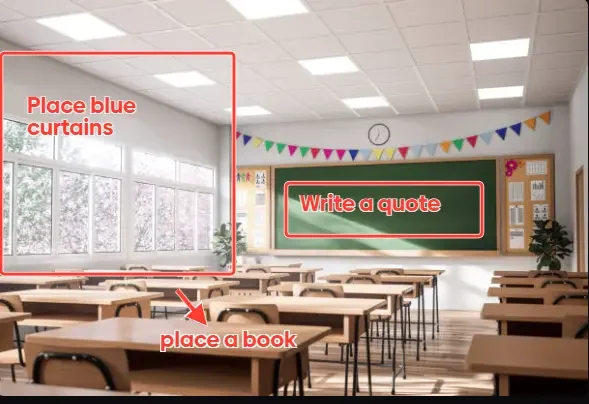 Marked up
 What was asked for 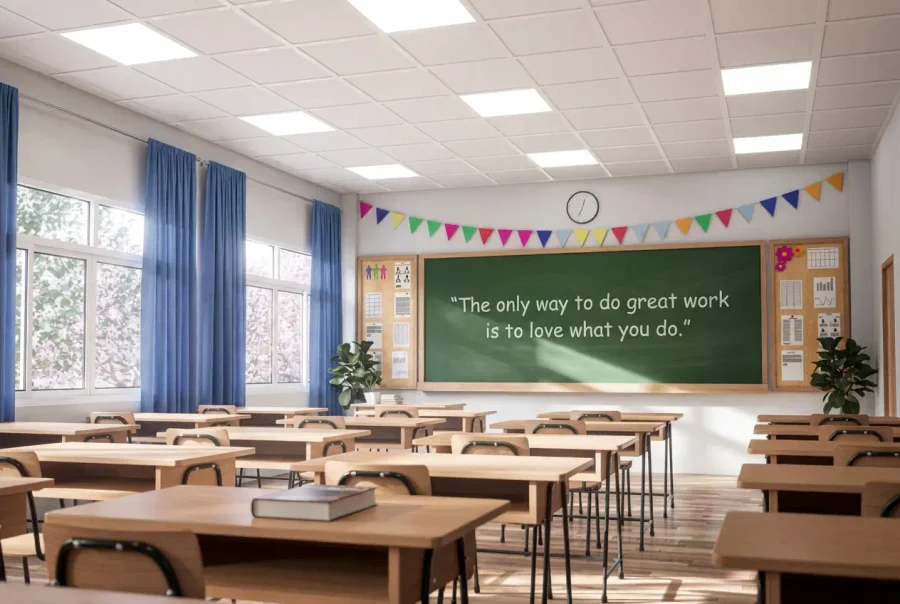 Result
 GPT Image 2 Reads the notes as an instruction and edits the whole frame -
Recolour one thing, add another
A box round the sofa asking for purple, and an ellipse where a woman should be sitting. Everything outside the marks is left as it was.
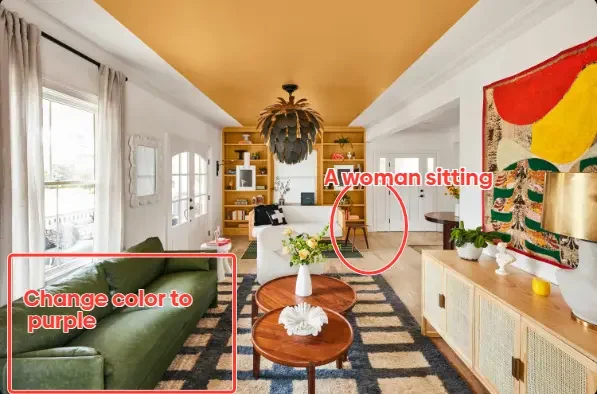 Marked up
 What was asked for 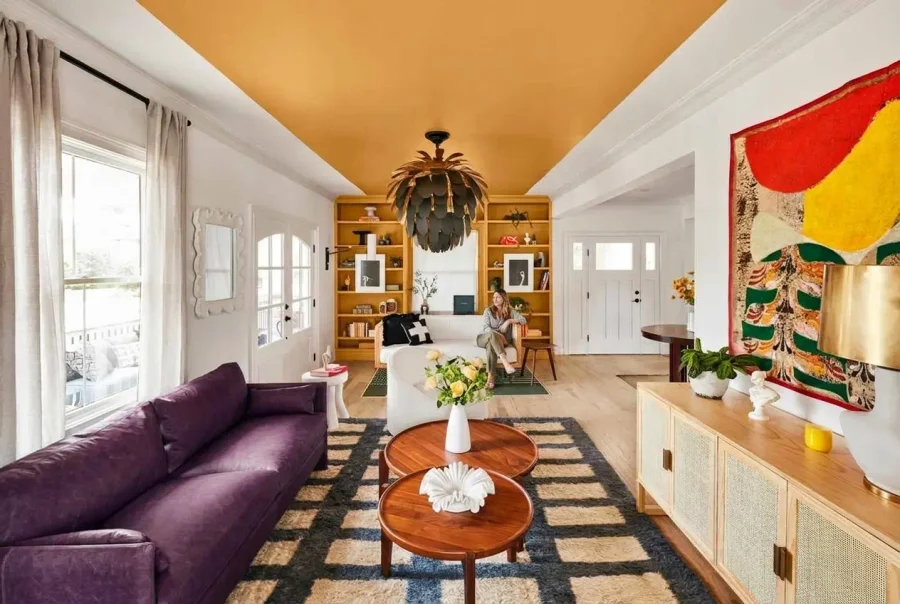 Result
 Flux Fill Edits only inside the marked region
Mark it up, and let the app write the brief
Upload and mark up
Drop an image and annotate it with any of the eight tools, in any of six ink colours. Place a text note directly on the picture to say what should change there, and undo or redo from the keyboard as you go.
Add references
Optional. Up to four reference images can be dropped onto the canvas to show the model what you mean rather than describe it.
Enhance and render
The app rewrites your annotations into a single written instruction, then sends it with the picture. Choose a model, and the result lands in your Image library.
What Draw to Edit takes, and what it returns
What Draw to Edit needs from you
- Input
- One image, marked up on the canvas
- Annotations
- Marks, regions, pointers and text notes placed on the picture
- References
- Up to four reference images, optional
- Pricing
- 60 credits per megapixel of what the model receives
Export specifications
- Output
- One edited image per run, on every model
- Pricing
- 60 credits per megapixel of what the model receives, not what you uploaded
- Delivery
- Your Image library, alongside everything else you have generated
The marks, the notes, and which model reads them
Only Flux Fill is sent a mask. The other three are sent the clean photograph plus your annotations rewritten as an instruction, and never see the marks — sending marked-up composites made the model draw the markers into the output.
-
Canvas tools
Eight tools, six ink colours
Select and move, draw freehand, erase a mark, mark a rectangle, mark an ellipse, lasso a region, point at something, and add a note. Red is the default ink.
-
Text notes
Placed anywhere on the image
A note sits on the picture and asks what should change there, so the instruction is attached to the place it applies to.
-
Reference images
Up to four
Dropped on the canvas to show the model a colour, a material or a style rather than describe it.
-
Undo and redo
Keyboard
Every mark is a step you can take back, so the canvas is a draft rather than a commitment.
-
Prompt enhancement
Runs before generating
Your marks and notes are rewritten into one written instruction, which is what the model actually receives.
-
Model
Four models
Nano Banana Pro, Nano Banana, GPT Image 2 and Flux Fill. Only Flux Fill is given the mask.
-
Aspect ratio
Auto, 1:1, 16:9, 9:16, 4:3 or 3:4
Auto keeps the source framing.
Engine choice
Pick the one that matches your source.
- Best overall
Nano Banana Pro
Google's stronger editing model, and the default. Best overall quality.
Most edits
- Faster
Nano Banana
The same family, for faster and lighter edits.
Iterating quickly
- Text
GPT Image 2
OpenAI's editor, and the one to pick when the edit involves text. It has no Auto aspect ratio.
Edits involving text
- True inpaint
Flux Fill
The only model of the four that receives your mask, and it edits only inside the marked region. It downscales to 2,048 pixels wide first and is priced on that.
Protecting the rest of the frame
Built for editing one region, not regenerating the picture
-
Retouchers
Take out a distraction or repair a region without rebuilding the whole frame around it.
-
Packaging and ecommerce teams
Change wording or a colour on an existing shot instead of commissioning another one.
-
Art directors
Mark up a real layout the way you would mark up a proof, and see the change rather than describe it in an email.
Often used with
Built for Growth at Every Stage
Every plan includes every model and every feature. Plans only change how many credits you get and how many generations run at once.
- Credits refresh monthly
- Top-up additional credits anytime
- Unused credits don't roll over

Not ready for the commitment?

FAQ
Frequently asked questions
Everything you need to know about Draw to Edit on BeHooked.
Do the models see my marks?
Only Flux Fill does, as a mask. The other three receive the clean photograph plus your annotations rewritten as a written instruction, because sending them a marked-up composite made them draw the markers into the output.
Is it just a brush?
No. There are eight tools — select and move, draw freehand, erase a mark, mark a rectangle, mark an ellipse, lasso a region, point at something, and add a note — in six ink colours, with red as the default. Notes sit on the image itself and ask what should change there.
Which model should I use for text?
GPT Image 2. It is the one to pick when the edit involves text.
Can I generate several options at once?
No. Every run returns a single image, on every model. If you want alternatives, run it again.
How is it priced?
60 credits per megapixel of what the model receives, which is not always what you uploaded — Flux Fill downscales to 2,048 pixels wide first and is priced on that. Failed runs are refunded.
Can I show it a reference rather than describe one?
Yes. Up to four reference images can be dropped onto the canvas alongside your marks.
Where does the result go?
Into your Image library, with everything else you have generated, rather than into a list that only this app can read.